Personalising your website with CRM data, without the creepiness.
How to tailor website content by lifecycle stage or industry using CRM data, while keeping pages fast and respecting consent and privacy.
Most B2B websites show the same page to everyone: a first-time visitor, a prospect halfway through a proposal, and a client of five years all see the same headline and the same "Book a demo" button. If you already hold CRM data about some of those visitors, you can use it to show them something more relevant.
Done well, this is modest and useful: a customer sees a link to support instead of a sales pitch, and a prospect in a regulated industry sees the case study that matches their sector. Done badly, it's intrusive, slows the site down and causes privacy problems. This guide covers what to personalise, how to build it without hurting performance, and what to check first.
What you can personalise
1. By lifecycle stage
This is the most useful and least intrusive starting point. Your CRM already knows whether a known contact is a subscriber, a lead, an open opportunity or a customer.
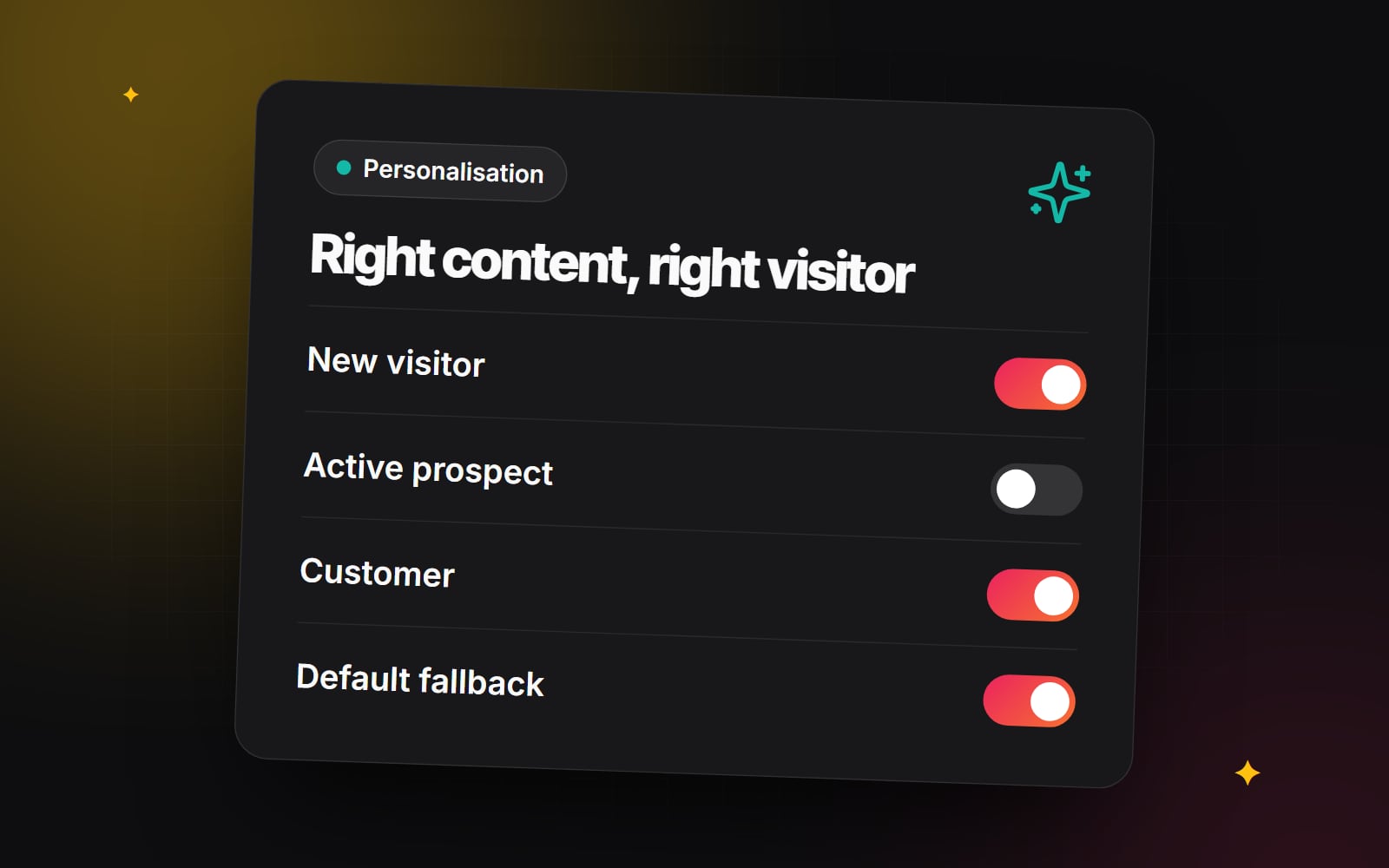
- Unknown or new visitors: show your standard positioning, a short explanation of what you do, and an easy next step.
- Active prospects: show material that helps them decide, such as implementation detail, security information or a link to book time with their contact.
- Customers: replace "Book a demo" with links to support, documentation or the client login.
2. By industry or need
If a visitor has told you their industry, for example on a form, you can show the case study or service description that matches it. Be wary of guessing industry from IP address. Reverse-IP lookups are often wrong, especially for remote workers, and a wrong guess is worse than no personalisation.
3. For named target accounts
For a short list of accounts you're actively pursuing, a dedicated landing page that you send them directly is usually more honest and more reliable than changing your homepage on the fly. The visitor knows why the page is relevant, because you sent it.
Keep it helpful, not unsettling
There is a clear line between "this site knows I'm a customer" and "this site knows where I am and who I work for". Greeting someone by name, company and city on their first visit tends to feel like surveillance. A practical test: would the visitor understand how you know this? If they filled in a form or logged in, yes. If you inferred it from tracking data, probably not.
Tools for the job
If your site runs on HubSpot CMS, smart content lets you show different versions of a module or rich text area based on rules such as lifecycle stage, list membership, country, device type or preferred language. It's built into the CMS and needs no custom code. Check your current HubSpot subscription to confirm smart content is included. Our HubSpot CRM set-up work often starts by cleaning up lifecycle stages, because personalisation is only as reliable as the data behind it.
On a custom site, for example one built with Next.js, you can do the same thing by reading a first-party cookie or a session after login and choosing which content block to render.
Personalisation without slowing the site
The traditional problem: if every page is built per visitor, you can't serve it from a CDN cache, and response times suffer. There are better patterns.
- 1 Personalise a few blocks, not the whole page. Keep the layout, navigation and most content the same for everyone, and vary only a hero line, a CTA or a case-study card.
- 2 Decide early, at the edge. Next.js proxy (called middleware in earlier versions) and similar edge functions can read a cookie and route the visitor to one of a small number of cached variants. Because you have, say, three versions of a page rather than one per person, each version can still be cached.
- 3 Avoid swapping content after the page loads. Changing a headline with client-side JavaScript after the page has rendered causes flicker and layout shift, which hurts your Cumulative Layout Shift score. See our guide to Core Web Vitals for the thresholds Google uses.
- 4 Always have a fast default. If the CRM lookup fails or is slow, show the default version immediately. Never make the page wait for a third-party API.
Privacy and consent: what to check
Personalising with CRM data almost always means processing personal data, so check the following before you build anything. This isn't legal advice. Confirm your obligations with a lawyer who knows the markets you operate in.
- Consent for cookies and tracking. In the UK and EU, cookies that aren't strictly necessary, including many used to identify returning visitors, generally require consent first. Your consent banner needs to control the personalisation cookies as well as the analytics ones. Our cookie consent and GDPR guide covers the basics.
- Lawful basis and transparency. Your privacy notice should explain that you use CRM data to tailor website content.
- Special category data. Don't personalise based on health, beliefs or other sensitive categories.
- Official guidance. The UK Information Commissioner's Office (ICO) and the European Data Protection Board (EDPB) both publish guidance on cookies, profiling and personal data. Read the relevant sections before deciding what's appropriate.
Common mistakes
- 1 Starting with too many rules. Five audiences with three variants each means fifteen versions to write, test and keep up to date. Start with one rule.
- 2 Relying on dirty CRM data. If lifecycle stages aren't kept up to date, customers will see sales pitches. Fix the data first.
- 3 Forgetting the default. Most visitors are anonymous, so the default page still matters most.
- 4 Not measuring. Keep a share of eligible visitors on the default version and compare outcomes. Our guide to GA4 reports explains where to look.
- 5 Ignoring consent state. If a visitor declines cookies, the personalisation that depends on those cookies shouldn't run.
A sensible first project
- 1 Check that lifecycle stages in your CRM are accurate for existing customers.
- 2 Confirm with your legal adviser that your consent banner and privacy notice cover the use you plan.
- 3 Create one variant of your homepage CTA for customers, linking to support or login.
- 4 Set the rule so it applies only to contacts whose lifecycle stage is "Customer".
- 5 Test it with a customer contact record and with an anonymous browser session.
- 6 Review the results after a few weeks before adding a second rule.
If you'd like a hand planning or building CRM-driven personalisation that stays fast and respects consent, our automation and integrations team can help. Contact us with a short outline of your set-up.
Planning something similar?
Tell us what you're building and we'll come back with ideas and next steps.