Website backups that actually restore: the 3-2-1 rule in practice.
A backup you've never restored is a hope, not a plan. How the 3-2-1 rule applies to websites, what to back up, and how to test a restore.
Almost every website owner believes they have backups. Fewer know where those backups are stored, how far back they go, or whether anyone has ever restored one. The first time many people find out is the day they need it.
Websites break for ordinary reasons: a plugin update goes wrong, someone deletes the wrong page, a hosting account is compromised, or a renewal is missed. A good backup turns each of these from a crisis into an inconvenience. This guide explains what to back up, where to keep it and how to prove it works.
The 3-2-1 rule
The 3-2-1 rule is a long-standing guideline from the data protection world, and it translates well to websites:
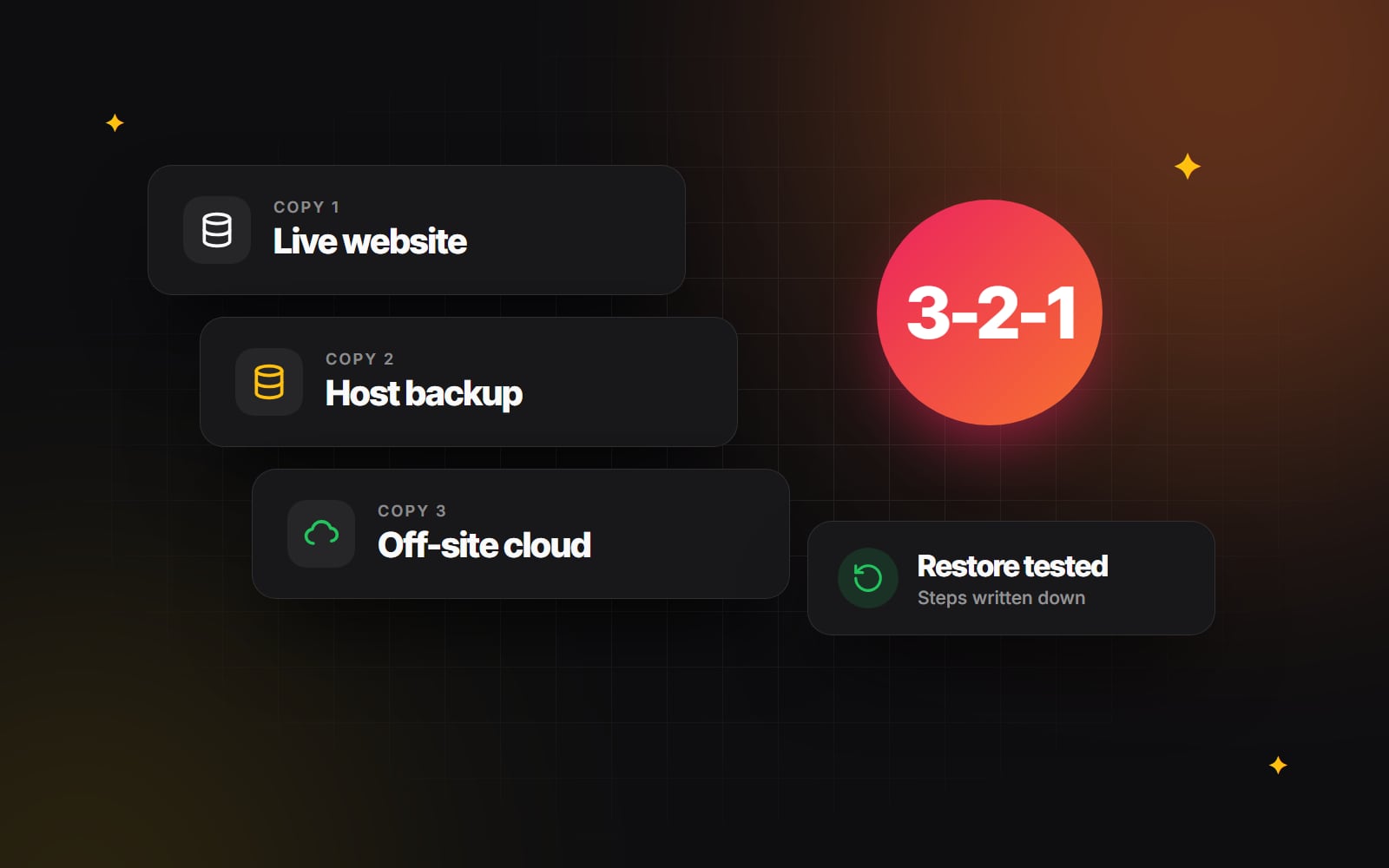
- 3 copies of your data: the live website plus two backups.
- 2 different types of storage, so one fault can't take out both backups.
- 1 copy off-site, meaning somewhere other than your web host.
The last point catches most people out. Backups made by your hosting company are useful, but they usually sit with the same provider as your website. If the account is suspended, hacked or closed, those backups can disappear with it.
What a website backup should include
What you need depends on how your website is built.
Self-hosted sites (WordPress, Magento, custom builds)
- The database: pages, posts, products, orders, users and settings.
- The files: theme and code, plugins, and the uploads folder with every image and document.
- Configuration: settings files and anything needed to reconnect the site to its database and services. Keep these secure, as they often contain passwords.
Hosted platforms (Shopify, HubSpot, Webflow)
The platform keeps the servers running and backed up, but that's different from protecting your content against mistakes. If someone deletes a collection of products or overwrites a page, getting it back may be your job. Check what your platform offers: Webflow, for example, keeps site backups you can restore, while on Shopify many stores use a backup app or export products, customers and orders regularly. If someone else built or runs your Shopify store, ask them how its data is protected.
For every website
- A copy of your DNS records, so you can rebuild them if your DNS provider changes. Many providers let you export them in one click.
- Your design files and brand assets, stored somewhere other than one person's laptop.
How often, and how far back
Match the schedule to how often the website changes and how much data you could afford to lose:
- Online shops and sites that take bookings or enquiries: at least daily, and more often if orders come in all day.
- Brochure sites that change now and then: weekly is usually enough, plus a manual backup before any change.
- Before every update or redesign: always take a fresh backup, whatever the schedule says.
Keep several versions rather than only the latest. Problems such as malware or a broken setting can go unnoticed for weeks, and if your only backup was taken yesterday, it may contain the same problem.
Where to keep the off-site copy
For self-hosted sites, the simplest approach is a backup tool that sends copies straight to cloud storage. On WordPress, plugins such as UpdraftPlus can send backups to Google Drive, Dropbox or Amazon S3. Many cPanel hosts also offer tools that copy backups to a remote destination.
Whatever you use, remember that backups contain the same information as your website, including any customer details. Store them somewhere with restricted access and two-factor authentication. Our guide to security basics for small teams covers how to set that up.
How to test a restore
A backup is only useful if you can restore it. Testing takes an afternoon, and it's the step almost everyone skips. Do it at least twice a year, and after you change how backups are made.
- 1 Choose a recent backup, ideally from your off-site copy, as that's the one you'd rely on in a real emergency.
- 2 Restore it somewhere safe: a staging subdomain, a test hosting account or a local copy. Never test by overwriting your live website.
- 3 Check that it works, not only that it loads. Open several pages, view images, log in to the admin, submit a test form, and on a shop, add a product to the basket.
- 4 Time it. Knowing that a restore takes two hours, not ten minutes, helps you plan and set expectations.
- 5 Write down the steps while they're fresh, including logins and anything that didn't go to plan. Next time, anyone on the team can follow them.
- 6 Delete the test copy or protect it with a password, so it doesn't get indexed by search engines.
Common backup mistakes
- Backing up only the database, or only the files. You need both to rebuild a self-hosted site.
- Storing backups inside the website folder. Anyone who can reach the site may be able to download them, and if the server fails they go with it.
- Letting the backup storage fill up. Many tools quietly stop making new backups when space runs out. Check that recent backups actually exist, not just that the tool is installed.
- Relying on one person. If only your developer knows how to restore the site, you have a backup but not a recovery plan.
A short checklist
- Backups run automatically, on a schedule that matches how often the site changes.
- At least one copy is stored away from your web host.
- Several versions are kept, going back weeks rather than days.
- Someone has restored a backup in the last six months, and the steps are written down.
- A fresh backup is taken before every update, migration or redesign. Our redesign checklist includes it as step one.
If you're not sure how your website is backed up, or you'd like it set up properly as part of a WordPress or web development project, tell us about your site and we'll take a look.
Planning something similar?
Tell us what you're building and we'll come back with ideas and next steps.