DNS, SSL and HSTS explained for business website owners.
What the main DNS records do, how SPF, DKIM and DMARC protect your email, how HTTPS and HSTS work, and the risks of HSTS preload.
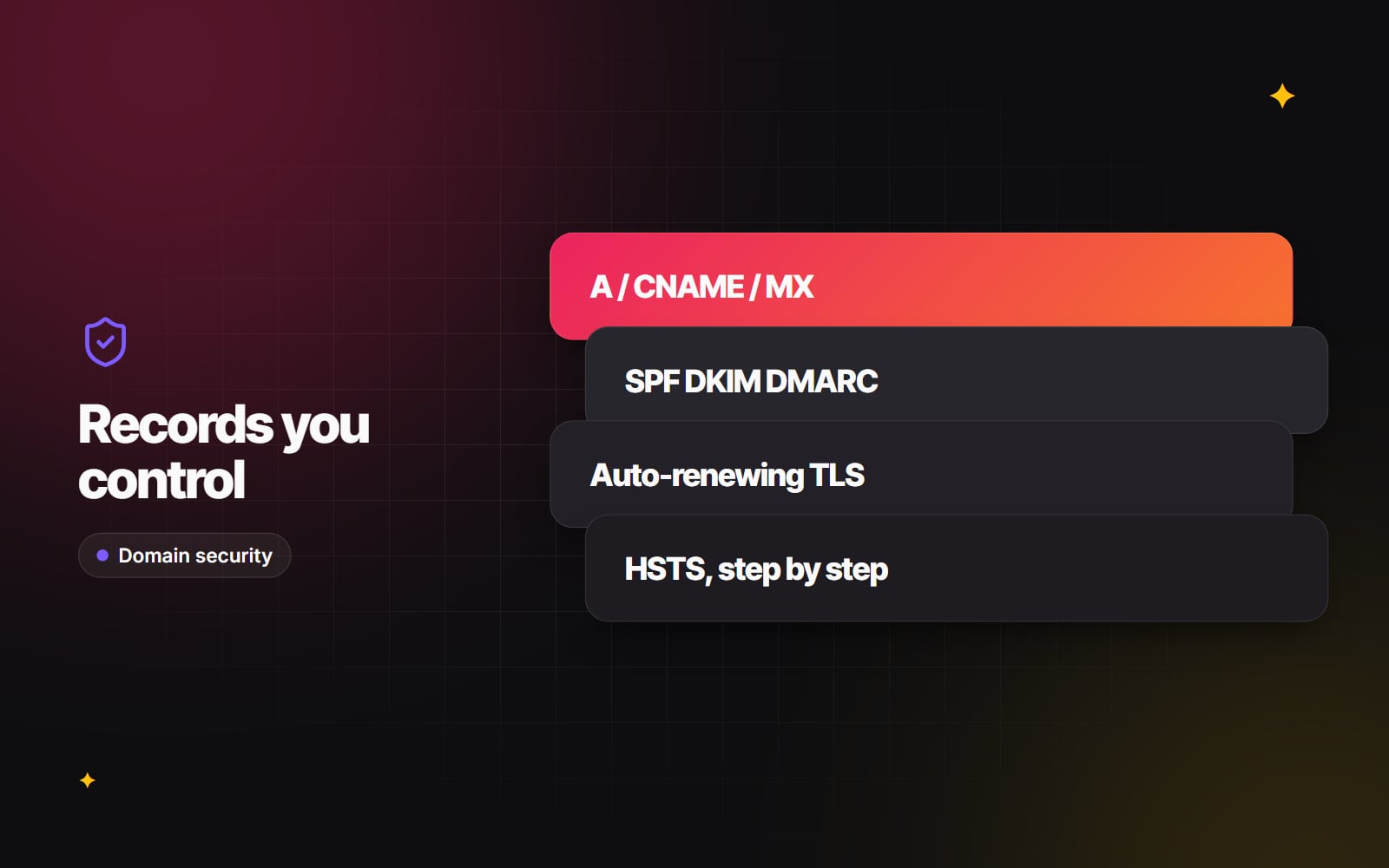
DNS records and SSL certificates are the parts of a website most people never see. When they're set up properly, the site loads securely and email reaches inboxes. When they're not, the symptoms are confusing: browser security warnings, a site that works for some people but not others, or invoices that land in customers' spam folders.
Common causes are mundane: the domain registrar account belongs to someone who left the business, old records from tools you stopped using years ago are still in place, or email authentication was never finished. This guide explains the main records, how email authentication works, how HTTPS and HSTS fit in, and how to change DNS safely.
The DNS records that matter most
DNS turns a domain name into the addresses and services behind it. You'll usually manage it at your domain registrar or a DNS provider. These are the record types most businesses deal with:
| Record | What it does | Typical use |
|---|---|---|
| A / AAAA | Points a name to an IPv4 (A) or IPv6 (AAAA) address | Your root domain pointing to your web host |
| CNAME | Makes one name an alias of another name | www or shop pointing to a platform such as Shopify or HubSpot |
| MX | Says which servers receive email for the domain | Google Workspace, Microsoft 365 or another mail provider |
| TXT | Holds text used for verification and policies | SPF, DMARC, and site verification for tools like Search Console |
| CAA | Lists which certificate authorities may issue certificates for the domain | Limiting issuance to the provider(s) you actually use |
The first check is ownership. If the registrar or DNS account sits with a former employee or a previous agency, a single missed renewal or lost password can take your website and email offline together. Our guide on who owns your domain walks through how to check and fix this. Protect those accounts with strong unique passwords and two-factor authentication, as covered in our security basics for small teams.
Email authentication: SPF, DKIM and DMARC
MX records only handle incoming mail. To show that outgoing mail genuinely comes from you, three records work together. Since 2024, Google and Yahoo have required senders to authenticate their mail, with stricter rules (including DMARC) for bulk senders, and Microsoft has introduced similar requirements for high-volume senders. Even if you send only a little email, setting all three up properly is the safe default.
- 1 SPF (Sender Policy Framework) is a TXT record listing the services allowed to send email for your domain, such as your mail provider, CRM and newsletter tool. You should have only one SPF record per domain, and the SPF standard limits how many DNS lookups it can trigger (ten), so long chains of include: entries can break it.
- 2 DKIM (DomainKeys Identified Mail) adds a digital signature to each message. The sending service gives you a public key to publish in DNS, and receiving servers use it to confirm the message wasn't altered and was sent with your permission. Set up DKIM separately for each service that sends as your domain.
- 3 DMARC tells receiving servers what to do with mail that fails the checks and sends you reports about who is sending as your domain.
Rolling out DMARC safely
Jumping straight to the strictest DMARC policy can block your own legitimate mail, for example invoices sent from an accounting tool you forgot to authorise. A staged approach is safer:
- 1 Publish a DMARC record with p=none and a reporting address, so nothing is blocked yet.
- 2 Read the reports for a few weeks and list every service sending as your domain.
- 3 Add SPF and DKIM for any legitimate service that's failing.
- 4 Move to p=quarantine, which sends failing mail to spam.
- 5 When reports are clean, move to p=reject.
A p=reject policy makes it much harder for others to send email that uses your exact domain. It doesn't stop lookalike domains, so staff training still matters.
HTTPS and certificates
People still say "SSL", but modern sites use its successor, TLS. Either way, the certificate lets browsers confirm they're talking to your site and encrypts the connection. Today, HTTPS should be on every page, not just checkout.
- Hosted platforms such as Shopify, Webflow and HubSpot usually issue and renew certificates automatically once your DNS points to them.
- Self-hosted sites should use automated issuance and renewal (for example via the ACME protocol used by Let's Encrypt and other certificate authorities) rather than manual renewal.
The CA/Browser Forum, which sets the rules for publicly trusted certificates, has agreed to reduce maximum certificate lifetimes in stages over the next few years. Shorter lifetimes make manual renewal impractical, so automatic renewal plus expiry monitoring is now essential. If you add a CAA record, make sure it includes every certificate authority your hosts and platforms use, or renewals can fail.
HSTS: telling browsers to always use HTTPS
Most sites redirect http:// to https://. The weakness is that very first unencrypted request, which can be interfered with on an untrusted network. HTTP Strict Transport Security (HSTS) is a response header that tells the browser to use HTTPS for your domain for a set period, so later visits skip the insecure request entirely. MDN has a clear reference for the Strict-Transport-Security header.
A typical header looks like this:
Strict-Transport-Security: max-age=31536000; includeSubDomainsHere max-age is in seconds (this example is one year), and includeSubDomains applies the rule to every subdomain.
Turning on HSTS gradually
- 1 List every subdomain you use, including mail, staging, internal tools and old marketing subdomains, and confirm each works over HTTPS.
- 2 Start with a short max-age, such as five minutes (300), without includeSubDomains.
- 3 Check nothing breaks, then increase to a day, then a week, then a month.
- 4 Add includeSubDomains only once every subdomain supports HTTPS.
- 5 Move to a long max-age, such as a year, when you're confident.
HSTS preload: understand the risks first
Browsers maintain a "preload list" of domains that are always loaded over HTTPS, even on the very first visit. Getting on the list requires a long max-age, includeSubDomains and the preload directive. It closes the first-visit gap, but it has real downsides:
- It is hard to undo. Removal is possible, but it takes time to reach users' browsers, and until it does, HTTP-only parts of your domain won't load.
- It covers every subdomain. Any current or future subdomain that can't serve HTTPS, such as an old intranet tool or a third-party service on a CNAME, will become unreachable.
- It affects the whole domain. Other teams or suppliers using subdomains are bound by it too.
For many small and mid-sized businesses, a well-configured HSTS header without preload is a sensible place to stop. Consider preload only when you control every subdomain and have a plan for new ones.
Changing DNS without downtime
Moving hosts or launching a new site usually means changing DNS. A careful sequence avoids most problems:
- 1 Export or screenshot your current DNS records, so you can restore them if needed.
- 2 A day or two before the change, lower the TTL (time to live) on the records you'll change, for example to five minutes. Resolvers will then pick up the new values quickly.
- 3 Set up the new host and, where the host supports it, get the certificate ready before switching (some hosts can validate in advance; others issue it only once DNS points to them).
- 4 Change only the records you need to. Leave MX, SPF, DKIM and DMARC alone unless email is moving too.
- 5 Check the site from several networks and use an online DNS lookup tool to confirm the new values are being served.
- 6 Keep the old host running until traffic has clearly moved over.
- 7 Raise the TTL back to its normal value.
If the DNS change is part of a relaunch, follow the wider steps in our guide to redesigning without losing your rankings.
DNS, certificates and HSTS are small settings with large consequences, and they're worth reviewing as part of regular website maintenance. If you'd like a second pair of eyes on your set-up, see our web development work or get in touch.
Planning something similar?
Tell us what you're building and we'll come back with ideas and next steps.