Webflow interactions without slowing your site down.
How to choose Webflow interactions that stay fast: what to animate, reduced motion, Lottie files, layout shift and measuring.
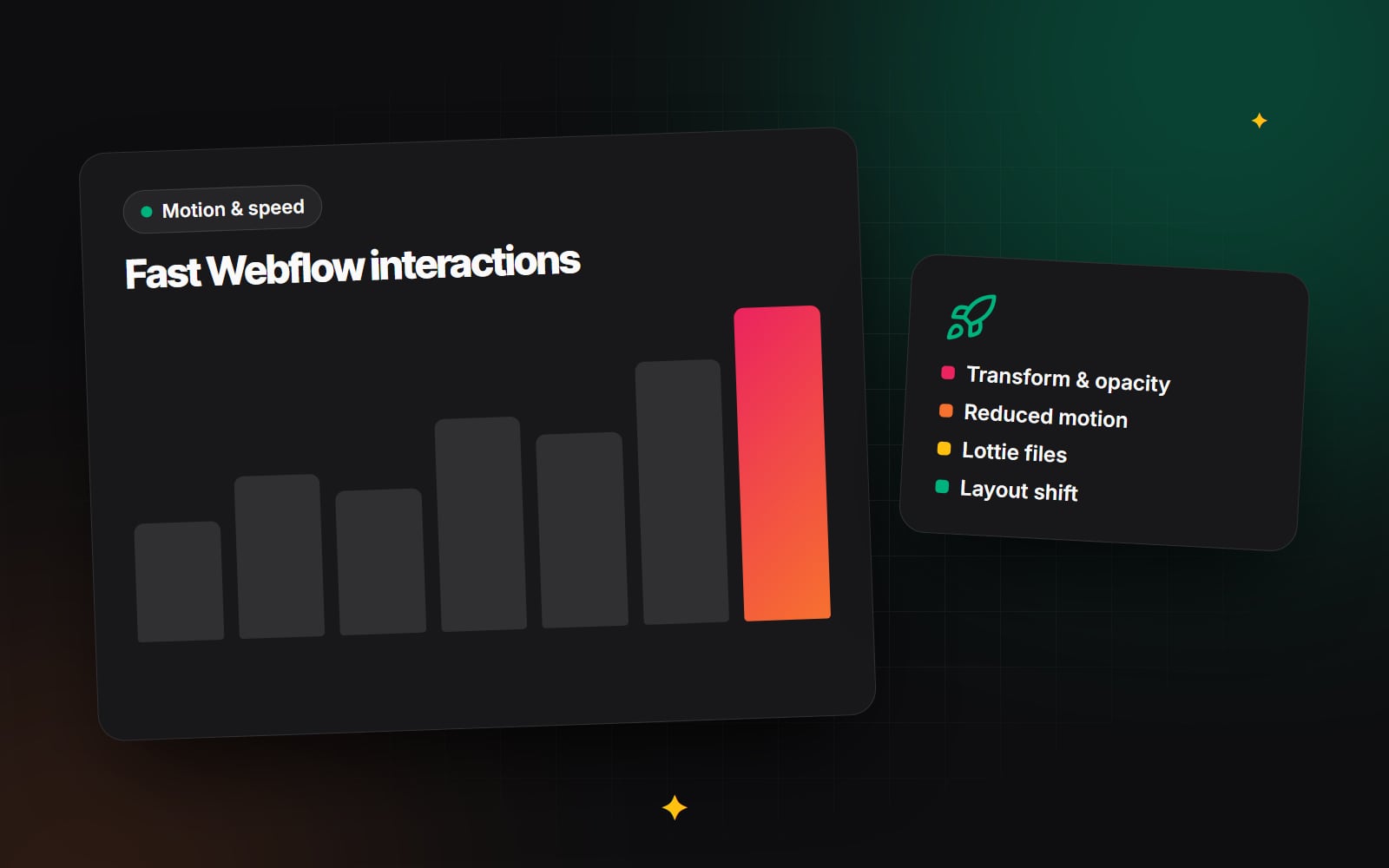
Webflow interactions make it easy to add motion to a site: elements that fade in on scroll, menus that slide open, cards that lift on hover. That ease is also the risk. A few quiet animations make a site feel finished; dozens of them, especially on page load, can delay content, shift layouts and make the site harder to use. This guide covers how to choose Webflow interactions that help, how to respect people who prefer less motion, how to handle Lottie files and how to measure the effect on performance.
How Webflow interactions affect speed
Webflow interactions are applied by JavaScript in the browser. Webflow sets an element's starting state, then changes its properties when a trigger fires, such as a page load, a scroll into view or a click. Webflow now owns GSAP, a widely used animation library, and its newer interaction tools build on it. Either way, three things affect how much an interaction costs:
- What is animated. Some CSS properties are cheap for the browser to animate; others force it to recalculate layout on every frame.
- When it runs. Animations that run on page load compete with the browser's most important work: showing the main content.
- How many there are. Each interaction adds a little work. Many of them on one page add up, particularly on slower phones.
These map directly onto Google's Core Web Vitals. Google's published thresholds for a good experience are Largest Contentful Paint (LCP) of 2.5 seconds or less, Interaction to Next Paint (INP) of 200 milliseconds or less, and Cumulative Layout Shift (CLS) of 0.1 or less, as described in Google Search Central's Core Web Vitals documentation. INP replaced First Input Delay as a Core Web Vital in March 2024. Our guide to Core Web Vitals in plain English explains each one.
Choosing what to animate
The single most useful rule: animate transform (move, scale, rotate) and opacity. Browsers can usually handle these without recalculating the page layout, so they stay smooth.
Animating width, height, margin, padding, top or left forces layout work on every frame. That can make animations stutter and, if it moves surrounding content, it can count as layout shift.
| Effect you want | Lighter approach | Heavier approach |
|---|---|---|
| Slide an element in | Move (transform) from an offset | Animate margin or top/left |
| Grow a card on hover | Scale (transform) | Animate width and height |
| Reveal content | Fade opacity with a small move | Animate height from zero |
| Open an accordion | Keep simple, test for layout shift | Several nested height animations |
| Background motion | Short, compressed video or CSS | Large video or many layered animations |
Some effects, like accordions, genuinely need to change height. That is fine when the user triggers it, because layout shifts that happen shortly after a user interaction are not counted against CLS. The problem is unexpected movement.
The page-load animation trap
A common pattern is to set the hero heading and image to zero opacity, then fade them in on page load. It looks polished in a demo, but it means the main content is invisible until the JavaScript runs and the animation finishes. On a slow connection or phone, visitors see an empty hero for longer than they should, and it can delay when the browser registers the largest content as painted.
Safer options:
- Leave the hero heading and main image visible from the start, and animate secondary elements only.
- Keep load animations short and subtle if you use them at all.
- Use scroll-into-view animations for content further down the page rather than load animations.
- Test the page with JavaScript disabled or on a throttled connection to see what visitors see first.
Avoiding layout shift
Layout shift happens when content moves after it has appeared. With interactions, common causes are:
-
elements that start hidden with
display: noneand then appear, pushing content down - animations that change size or margins of elements in the normal page flow
- Lottie or video containers without a fixed aspect ratio, which collapse and then expand as the file loads
- web fonts that swap in and change text size, which needs handling separately from interactions
Give media containers a set aspect ratio, prefer opacity and transform for reveals, and reserve space for anything that loads late.
Respecting reduced motion
Some people set their device to reduce motion because animation causes discomfort, dizziness or distraction. WCAG 2.2 includes guidance on motion from interactions and on pausing moving content. Browsers expose this preference through the prefers-reduced-motion media query.
Check what your current Webflow interaction settings offer for reduced motion, as the options have been changing. Where there is no built-in setting, a developer can add custom CSS or JavaScript that switches off or simplifies animations when the preference is set. A simple CSS approach looks like this:
@media (prefers-reduced-motion: reduce) {
  *, *::before, *::after {
    animation-duration: 0.01ms !important;
    transition-duration: 0.01ms !important;
    scroll-behavior: auto !important;
  }
}
JavaScript-driven interactions may need a separate check, so test with the setting turned on in your operating system. Make sure content that was meant to fade in is still visible when motion is reduced. Our guide to website accessibility basics covers related checks.
Using Lottie animations sensibly
Lottie files are vector animations exported from tools such as After Effects. Webflow has a Lottie element that plays them, and they can be controlled by interactions, for example playing as you scroll. They can be crisp and lightweight, but not always.
- Check the file size. Complex Lottie files with many layers or embedded images can be large. Simplify in the source file where possible.
-
Use the compressed format if available. Recent tooling supports the
.lottieformat, which is usually smaller than raw JSON. Check whether your Webflow setup accepts it. - Avoid embedded raster images inside Lottie files; they defeat the point of a vector format.
- Do not use Lottie for the main hero content if the page depends on it to make sense.
- Give the container a fixed aspect ratio to prevent layout shift.
- Limit how many play at once, especially on mobile.
Choosing interactions that earn their place
Performance is only half the question. The other half is whether an animation helps. Useful motion shows a change of state, draws attention to something important or explains how something works. Decorative motion that repeats on every section tends to tire people. Our article on micro-interactions covers the difference between polish and gimmick.
How to measure the effect
- 1 Pick two or three key pages, such as the home page and a main service page.
- 2 Run each through PageSpeed Insights and note LCP, INP, CLS and the diagnostics.
- 3 Open Chrome DevTools, go to the Performance panel and record a page load with CPU throttling turned on.
- 4 Look for long tasks and layout shifts in the recording.
- 5 Turn off or simplify one interaction at a time in Webflow and publish to a staging domain.
- 6 Run the same tests again and compare.
- 7 Check field data in PageSpeed Insights or Search Console once enough real visits have been recorded, as lab tests do not always match real users.
- 8 Test with reduced motion turned on in your operating system.
A quick checklist for Webflow interactions
- Main heading and hero image visible without waiting for animation
- Animations use transform and opacity where possible
- No unexpected layout shift from reveals or late-loading media
- Lottie files compressed and containers sized
- Reduced-motion preference respected
- Each animation has a clear reason to exist
- Key pages measured before and after changes
Web Canvas builds Webflow interactions with these trade-offs in mind as part of our UI/UX and brand design work, and we work on Webflow performance for existing sites. If your site feels slow or the motion feels like too much, get in touch and we can take a look.
Planning something similar?
Tell us what you're building and we'll come back with ideas and next steps.