WebP or AVIF? Choosing image formats for a faster website.
Images are often the heaviest part of a page. When to use AVIF, WebP, JPEG, PNG and SVG, and how to serve modern formats without breaking older browsers.
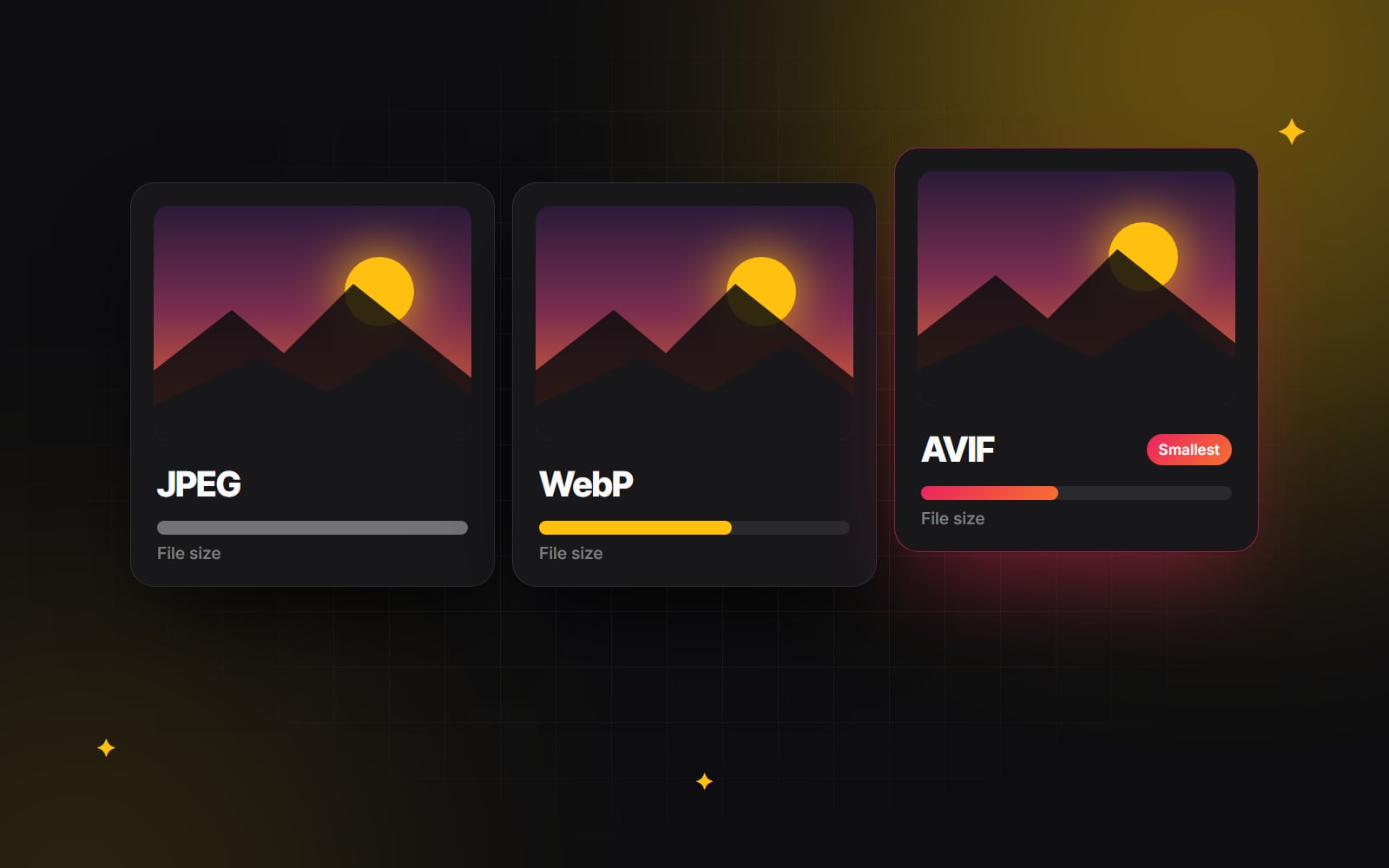
On most websites, images make up a large share of what visitors have to download. Choosing the right format is one of the easiest ways to make pages load faster, especially on phones and slower connections, and it usually needs no change to how the site looks.
The two modern formats you'll hear about most are WebP and AVIF. Both produce much smaller files than older formats at similar quality. This guide explains when to use each, where the older formats still make sense, and how to serve them safely.
The formats in brief
- AVIF: usually the smallest files for photos at a given quality, with support for transparency. It's slower to create, which matters if you convert images on the fly. Supported by all current major browsers, though some older versions of Safari and Edge don't support it.
- WebP: much smaller than JPEG and PNG, quick to create, supports transparency and animation, and works in every current browser. A safe default.
- JPEG: the long-standing format for photos. Still useful as a fallback for very old browsers and for sharing outside the web.
- PNG: lossless, so it's good for screenshots and graphics with sharp edges or text, but photos saved as PNG are very large.
- SVG: not a photo format at all. It's drawn from code, stays sharp at any size and is ideal for logos, icons and simple illustrations.
Which should you use?
- Photos and large hero images: AVIF first, with WebP as a fallback.
- Product images on a shop: AVIF or WebP, generated automatically by your platform where possible, since you'll have many of them.
- Screenshots and interface images: WebP, which keeps text crisp at a much smaller size than PNG. Compare AVIF too, as results vary with the image.
- Logos and icons: SVG.
The right answer can vary by image. The best test is to export the same image in both formats at a similar visual quality and compare the file size and how it looks at full size.
How to serve modern formats safely
If you write your own HTML, the <picture> element lets each browser choose the best format it supports:
<picture>
  <source srcset="hero.avif" type="image/avif">
  <source srcset="hero.webp" type="image/webp">
  <img src="hero.jpg" alt="Our team at work" width="1600" height="900">
</picture>
Browsers use the first format they understand and fall back to the JPEG otherwise. Many platforms do this for you:
- Shopify serves images through its own CDN, which delivers modern formats to browsers that support them.
- Next.js has an Image component that converts and resizes images automatically. WebP is the default, and AVIF can be switched on in the configuration.
- WordPress accepts WebP and AVIF uploads in recent versions, and image optimisation plugins can convert existing images.
Check what your platform does before converting images by hand. On our Next.js and Shopify builds, the conversion is automatic.
Format is only half of it
A small file in the wrong size, or loaded at the wrong time, can still slow a page down. Get these right as well:
-
1
Size images for how they're shown. A photo displayed 800 pixels wide doesn't need to be 4,000 pixels wide. Provide a few sizes with
srcsetandsizesso phones download smaller versions. - 2 Always set width and height, so the browser reserves space and the page doesn't jump as images load. This affects the layout shift score in Core Web Vitals.
-
3
Lazy-load images further down the page with
loading="lazy", but never the main image at the top, which should load as early as possible. -
4
Prioritise the hero image with
fetchpriority="high", as it's often the largest element on the page. - 5 Write useful alt text describing what the image shows, for screen reader users and for search engines.
How much compression is too much?
Every format lets you trade quality for size. Push too far and photos look smeared, gradients show bands, and edges around text get fuzzy. There's no single right setting, because it depends on the image, but a few habits help:
- Judge by eye, at full size, not by the number on the slider. Quality settings aren't comparable between formats, so a "60" in AVIF doesn't mean the same as a "60" in JPEG.
- Be gentler with faces, skin and products, where people notice flaws most. Backgrounds and decorative images can usually be compressed harder.
- Compress from the original, not from an already compressed file. Each round loses a little more detail.
- Keep the originals somewhere safe, so you can re-export when formats or screens improve.
Common mistakes
- Uploading photos straight from a camera or phone, often several megabytes each, and letting the page scale them down.
- Using PNG for photos because it's "higher quality". For photographs, it's simply much larger.
- Lazy-loading the hero image, which delays the largest thing on the page and hurts loading scores.
- Putting text inside images. It can't be read by screen readers or search engines, doesn't scale well, and is hard to update.
A simple workflow for your team
- 1 Export images at no more than twice the largest size they're displayed at.
- 2 If your platform doesn't convert images automatically, compress them to AVIF or WebP with a tool such as Squoosh.
- 3 Check the result at full size, especially faces, text and fine detail.
- 4 Upload, add alt text, and check the page still looks right on a phone.
- 5 Run the page through PageSpeed Insights before and after, so you can see the difference.
Where it matters most
Online shops, portfolios and image-heavy landing pages gain the most, since images make up most of each page. Our guide to product pages that convert covers product photography, and our e-commerce optimisation work often starts with images.
If your website feels slow and you're not sure why, ask us to take a look. Images are usually the first thing we check.
Planning something similar?
Tell us what you're building and we'll come back with ideas and next steps.