Planning Webflow CMS collections before you build.
How to plan Webflow CMS collections, fields, references and templates before building, so your content is easy to grow and edit.
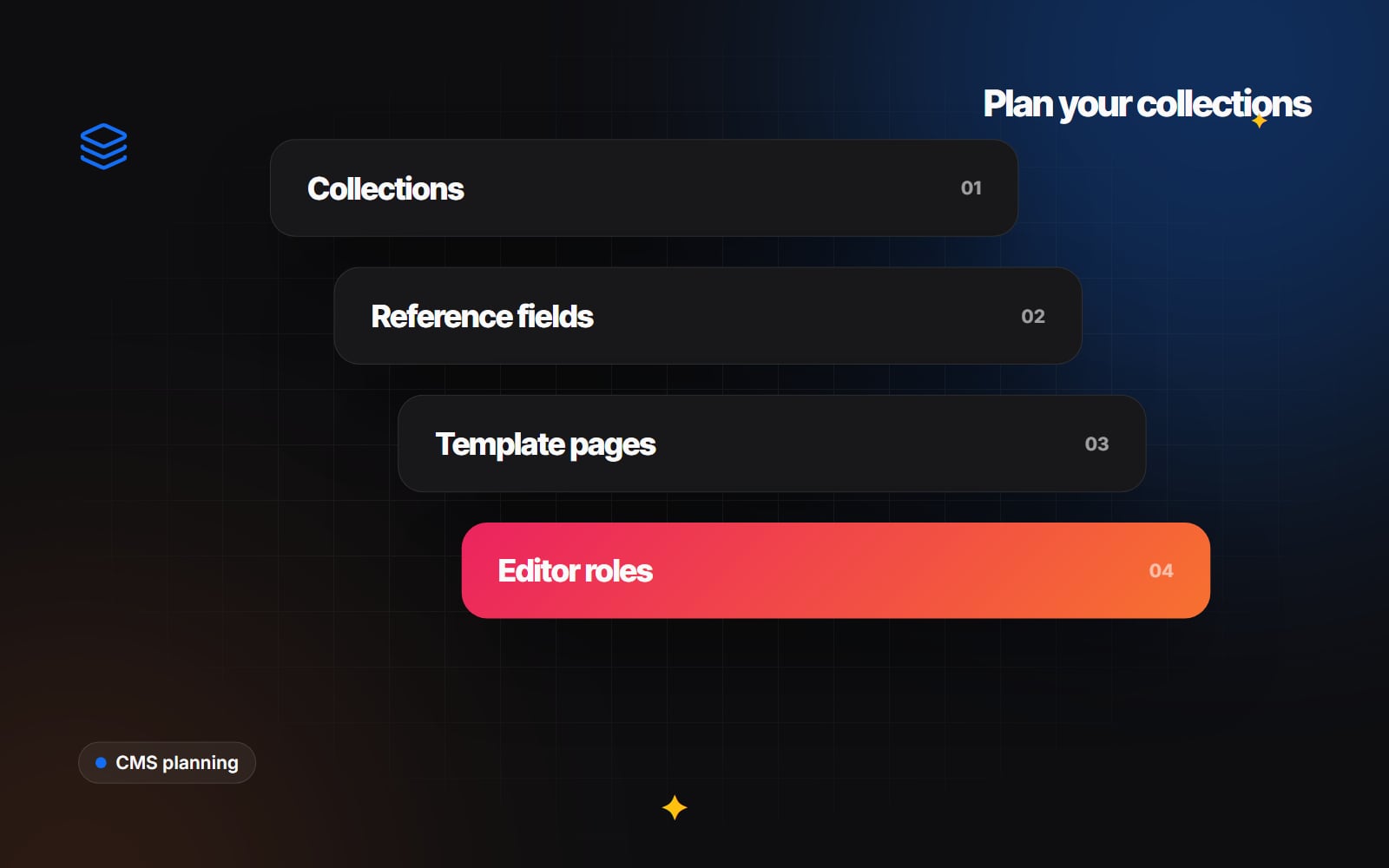
Webflow CMS collections are the part of a Webflow site that is hardest to change later. Pages and styles can be adjusted at any point, but once hundreds of items have been entered into a collection, renaming fields, splitting collections or changing how they reference each other becomes slow and risky. A little planning before the build saves a lot of rework. This guide walks through how to plan your Webflow CMS structure: collections, fields, references, templates, limits and editors.
What a Webflow CMS collection is
A collection is a set of items that share the same structure. A blog is the obvious example: every post has a title, slug, summary, main image, body and publish date. Other common collections include case studies, team members, services, locations, events, job listings, testimonials and FAQs.
Each collection has:
- Fields, such as plain text, rich text, image, link, number, date, switch, option and reference fields.
-
A template page, which Webflow uses to generate a page for every item at a URL like
/blog/your-post-slug. - Items, the actual entries your editors create and publish.
Collection lists then display items anywhere on the site: a grid of recent posts, a team section on the About page, or related case studies at the bottom of a template.
Start with content, not layout
Before opening Webflow, list every piece of content that repeats. Look at your current site, your sitemap and the Figma designs if you have them. For each type of content, ask:
- Will there be more than a handful of these?
- Will someone other than the developer add or edit them?
- Does each one need its own page?
- Will they be filtered, sorted or shown in different places?
If the answer to most of these is yes, it probably belongs in the CMS. If you only have three services that rarely change and each has a unique layout, static pages may be simpler.
Planning fields for each collection
For each collection, write the fields down in a spreadsheet before building. Include the field name, type, whether it is required and a note about where it appears. A blog collection might look like this:
| Field | Type | Notes |
|---|---|---|
| Name | Plain text | Post title, also used for the page title |
| Slug | Plain text (built in) | Forms the URL, keep short |
| Summary | Plain text | Shown on cards and used as the meta description |
| Main image | Image | Card and Open Graph image |
| Main image alt text | Plain text | Describes the image for screen readers |
| Body | Rich text | The article itself |
| Author | Reference | Links to the Authors collection |
| Topics | Multi-reference | Links to the Topics collection |
| Featured | Switch | Pins the post to the home page |
A few habits help:
- Give fields clear names. Editors see them every time they add an item. "Card summary (max two lines)" is more helpful than "Text 2".
- Add help text. Webflow lets you add a description to each field, which appears for editors.
- Separate content from presentation. Store a category as an option or reference, not as a colour. Let the template decide how it looks.
- Plan SEO fields. Decide which fields feed the page title, meta description and Open Graph image on the template.
Reference and multi-reference fields
References are what turn a set of separate lists into a connected content model.
- A reference field links an item to one item in another collection. A blog post has one author; a case study has one client industry.
- A multi-reference field links an item to several items in another collection. A post can have several topics; a case study can list several services.
Use references whenever the same information appears on many items. If every post stores the author's name and photo directly, updating a photo means editing every post. If posts reference an Authors collection, you update it once.
References also enable useful patterns: a topic page that lists every post tagged with it, a service page that shows related case studies, or nested collection lists that show items within items. These connections also support good internal linking, which our guide to topic clusters and internal linking covers in more detail.
There are practical limits on how many reference fields a collection can have and on how nested collection lists behave. These change over time, so check Webflow's current documentation before designing a structure that relies heavily on them.
Check your plan limits early
Webflow plans set limits on the number of CMS collections, the number of items and some related features. The exact numbers vary by plan and change from time to time, so check your plan on Webflow's pricing page and in your site settings before you commit to a structure. Things to estimate:
- how many collections the site needs, including small supporting ones such as Authors or Topics
- how many items each collection will hold at launch
- how many items you expect to add over the next few years
- whether you need localised versions of CMS content with Webflow Localization
If you expect very large volumes of content, for example thousands of location or product pages, discuss it with your developer early. Our article on programmatic SEO covers the content-quality side of building pages at scale, and our guide to headless CMS explains an alternative approach some larger sites take.
Planning template pages
Each collection with its own pages gets one template. Plan it alongside the fields, because every element on the template needs a source:
- Which fields appear, and in what order?
- What happens when an optional field is empty? Webflow's conditional visibility can hide elements when a field has no value.
- Which related items should appear at the bottom, and how are they chosen?
- Which fields feed the SEO and Open Graph settings for the template?
- Does the URL structure make sense? The collection's URL path is set in the collection settings.
Some collections do not need their own pages at all. Testimonials or logos usually only appear in collection lists. Their template pages still exist, so decide how to handle them, for example by keeping them out of the sitemap and adding a noindex tag, or redirecting them to a relevant page.
Planning for editors
A CMS is only as good as the experience of the people using it. When planning, think about who will add content and how often.
- Keep the number of required fields sensible so editors are not forced to invent content.
- Use option fields rather than free text where values should be consistent.
- Decide who can publish and who can only draft, using the roles and permissions available on your Webflow plan.
- Write a short guide covering how to add, edit and publish an item, with screenshots from your own site.
- Agree how images should be sized and compressed before upload.
Common mistakes
- Building pages first and fitting the CMS in later, which usually leads to awkward fields and duplicated content.
- One giant collection holding several content types with lots of optional fields. Separate collections are easier to manage.
- Too many collections for content that never repeats.
- Storing the same data in several places instead of using references.
- Ignoring plan limits until the site is close to them.
A planning checklist
- 1 List every type of repeating content on the site.
- 2 Decide which types become collections and which stay as static pages.
- 3 Write the fields for each collection in a spreadsheet, with type and notes.
- 4 Mark which fields are required.
- 5 Draw the links between collections and choose reference or multi-reference for each.
- 6 Estimate item counts and check them against your Webflow plan.
- 7 Sketch each template page and map every element to a field.
- 8 Decide which fields feed the SEO and Open Graph settings.
- 9 Decide which collections need their own pages.
- 10 Agree editor roles and write a short editing guide.
Web Canvas plans and builds Webflow CMS structures as part of our web development work. If you would like a second pair of eyes on your content model before you build, get in touch.
Planning something similar?
Tell us what you're building and we'll come back with ideas and next steps.