Migrating to Shopify: what your developer will handle.
What a developer handles when you move to Shopify: products, customers, orders, redirects, apps, theme, SEO, testing and launch day.
Migrating to Shopify involves more than copying products across. A developer has to move your data, keep your search rankings, replace features your old platform provided, build or adapt a theme, and plan a launch that does not interrupt trading. This guide explains what a Shopify migration developer typically handles at each stage, what you will still need to decide yourself, and where migrations most often go wrong.
What a migration to Shopify involves
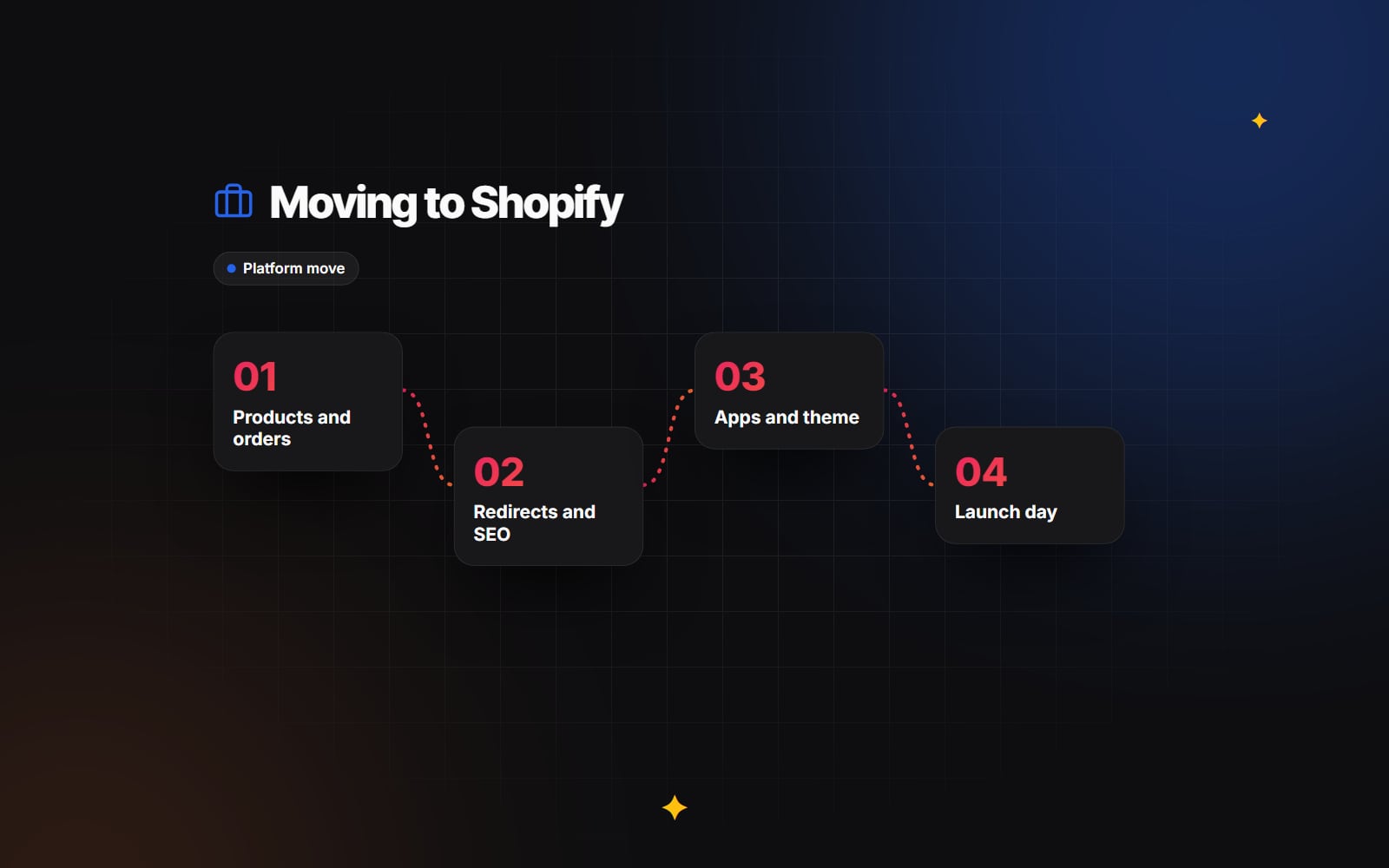
Every migration is different, but the work usually falls into the same stages:
| Stage | What the developer does | What you decide |
|---|---|---|
| Audit | Lists data, features, integrations and URLs on the current store | What to keep, change or drop |
| Data | Maps and imports products, customers and orders | How much order history to bring |
| Features and apps | Finds replacements for old plugins and builds custom pieces | Which features are essential |
| Theme | Builds or adapts an Online Store 2.0 theme | Design direction and content |
| SEO and redirects | Maps every important old URL to a new one | Which pages matter most |
| Testing | Tests journeys, payments, emails and integrations | Sign-off on each area |
| Launch | Connects the domain and monitors the switch | Launch date and timing |
For a store-owner's view of the same process, our Shopify migration checklist sets out the steps we follow.
Moving your data
Products
Products are usually the most involved part of the data move. Your old platform may structure options, variants, attributes and categories differently from Shopify. A developer maps each field: titles, descriptions, prices, SKUs, barcodes, weights, images, variants and SEO fields. Extra product details that do not fit Shopify's standard fields are usually stored as metafields or metaobjects. Categories become collections, which can be manual or rule-based.
Shopify supports product imports by CSV, and Shopify's own Store Importer app can bring data across from several common platforms. For complex catalogues, developers often use the Admin API or specialist migration tools to keep more control over the mapping.
Customers
Customer names, addresses, email addresses and marketing consent can be imported. Passwords cannot be transferred from another platform, so customers need to set up access to their account again. Plan how you will tell them, and check how your consent records are carried across. Any questions about data protection obligations during a migration are worth raising with a professional adviser.
Orders
Historical orders can be imported so customers see their history and you keep reporting continuity. They are usually imported through the API or a migration app, with care taken not to trigger order emails or affect stock. Decide how far back you need to go; not every store needs every order.
Other data
Gift card balances, subscriptions, saved payment methods, reviews and blog content each need their own plan. Some depend on what your payment provider or subscription app supports, so these conversations should start early.
Redirects and SEO
Shopify uses fixed URL patterns, such as /products/, /collections/, /pages/ and /blogs/. Your old URLs will almost certainly change. Without redirects, links from search results, other websites and old emails will lead to error pages, and rankings built up over years can drop.
A developer will:
- Export every indexed URL from the old site, using a crawl and your search console data.
- Map each important URL to its closest new equivalent.
- Import the redirects into Shopify's URL redirects, in bulk by CSV.
- Carry across page titles, meta descriptions and image alt text.
- Check canonical tags, structured data and the sitemap after launch.
Our guides on redesigning without losing rankings and the technical SEO audit checklist cover the checks in more detail.
Apps and features
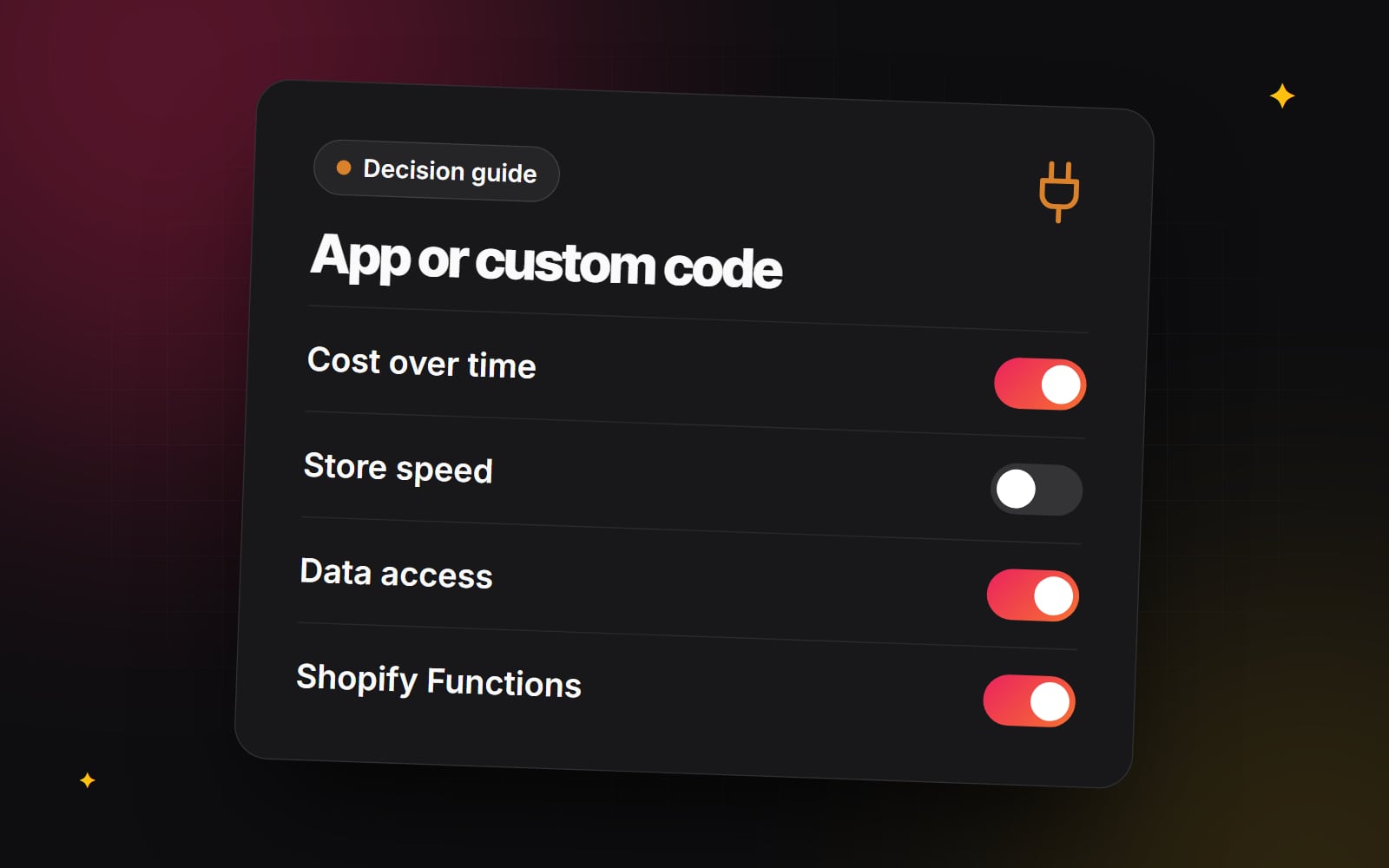
Features that came with your old platform or its plugins may need an app or custom code on Shopify. Common examples include product options, B2B pricing, subscriptions, bundles, wishlists and advanced search. A developer should list each feature, suggest whether Shopify handles it natively, whether an app is a good fit, or whether a small custom app is better. Discount logic that used to live in custom code may now be built with Shopify Functions. Checkout customisations use checkout extensibility rather than editing checkout templates.
This is also a good time to drop features nobody uses.
The theme
You can start from a Theme Store theme and customise it, or build a custom theme. Either way it should be an Online Store 2.0 theme, with sections and blocks your team can edit. A migration is often the moment to fix long-standing problems with product pages and navigation, rather than recreating the old site exactly.
Testing
Testing should cover more than "does the page load". Before launch, a developer should check:
- Every product type, including variants and out-of-stock items.
- Cart, discounts, shipping rates and taxes for each region you sell to.
- Test orders through each payment method, including a refund.
- Order, shipping and account emails.
- Integrations with stock, accounting, fulfilment and email marketing.
- A sample of redirects, especially top pages and top products.
- Pages on real phones, not only desktop browsers.
Launch day
A good launch is quiet. Common steps include a final data sync of new orders and customers since the main import, removing the storefront password, connecting the domain in Shopify and updating DNS, checking that SSL is active, placing a live test order, and watching for errors and missing redirects in the hours and days after. Choose a quiet trading period and make sure someone who knows the old platform is available.
Where Shopify migrations go wrong
- Redirects left until the last day. Mapping takes time and needs decisions about pages that have no direct equivalent.
- Unclear data scope. Discovering late that subscriptions or gift cards need special handling.
- Recreating every old feature. Adding apps for features nobody used.
- No content freeze. Products added to the old store after the final import go missing.
- Launching at a busy time. Leaving no room to fix small issues calmly.
A step list for your Shopify migration
- 1 Export a full list of products, customers, orders and URLs from your current store.
- 2 List every feature, plugin and integration, and mark each as essential or optional.
- 3 Decide how much order history to bring across.
- 4 Agree how customers will be told about logging in again.
- 5 Have the developer import data into a development store and review it.
- 6 Build the redirect map and review the top pages yourself.
- 7 Approve the theme on the development store.
- 8 Test payments, emails and integrations with real test orders.
- 9 Agree a content freeze date on the old store.
- 10 Run the final data sync and launch.
- 11 Check search console, redirects and orders daily in the first weeks.
Getting help with a migration
Web Canvas handles Shopify migrations, including data mapping, redirects, apps and theme work, and follows up with e-commerce optimisation once the new store is live. If you are planning a move and want to talk through what it would involve for your store, you can get in touch with a short description of your current setup.
Planning something similar?
Tell us what you're building and we'll come back with ideas and next steps.