How to audit your website before a redesign.
A step-by-step pre-redesign audit: content inventory, redirect map, visitor drop-off, forms and integrations, speed benchmarks and team interviews.
It's tempting to start a redesign with the fun part: new layouts, new colours, new wireframes. But if you skip a look at what the current site actually does, you can lose things that matter. Pages that quietly bring in most of your search traffic get deleted, a form that feeds your CRM gets rebuilt without its integration, and years of outdated content gets copied into a new template.
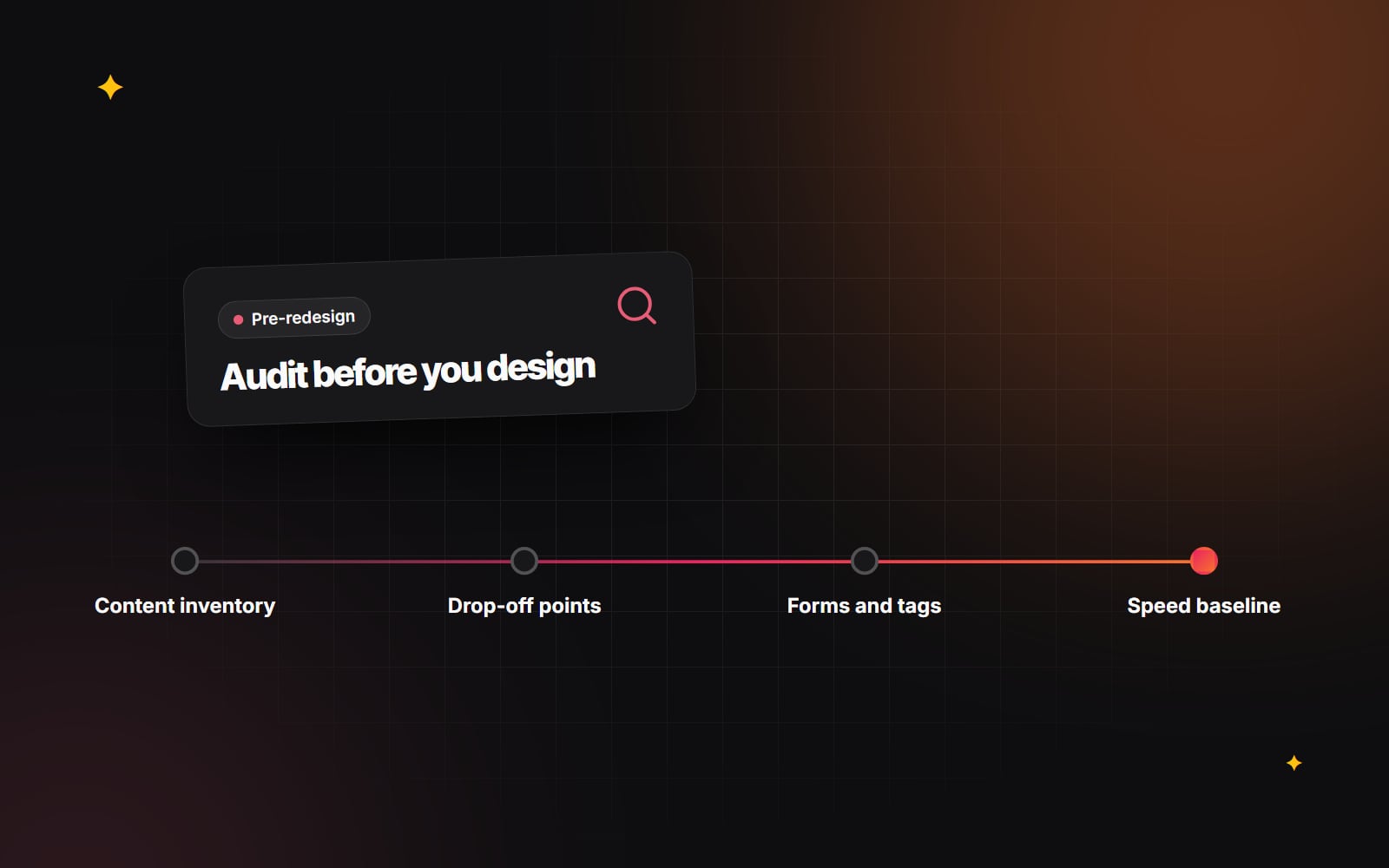
An audit before the redesign prevents most of this. It doesn't need to be elaborate. It needs to answer four questions: what pages do we have, which ones matter, where do visitors struggle, and what is connected behind the scenes?
Step 1: Build a full content inventory
Don't rely on the navigation menu or someone's memory to tell you what pages exist. Older sites nearly always have more pages than anyone expects.
- 1 Run a crawler such as Screaming Frog or Sitebulb over the whole site to list every URL, its title, status code and where it is linked from.
- 2 Export your XML sitemap and compare it with the crawl. Pages in the sitemap but not found by the crawl may be orphaned.
- 3 In Google Search Console, open Performance > Search results, set the date range to the last 12 months and export the Pages tab.
- 4 In Google Analytics 4, export landing-page data for the same period, including key events such as enquiries or purchases.
- 5 If you use an SEO tool with backlink data, export the pages that have links from other websites.
- 6 Combine everything in one spreadsheet, with one row per URL.
Step 2: Decide what happens to each page
Add a column to the spreadsheet and give every URL a decision:
| Decision | When to use it |
|---|---|
| Keep | Brings search traffic, earns links, generates enquiries or sales, or is needed by customers |
| Improve | The topic matters but the content is out of date or thin |
| Merge | Several pages cover the same topic and would work better as one |
| Remove | No traffic, no links, no business purpose, and nothing similar to redirect to |
Usually a fairly small group of pages accounts for most of your search traffic and enquiries. Identify those early and treat them carefully. Their content, URLs or redirects should be planned before design starts, not after launch.
Start the redirect map now too: a sheet of old URLs and their new destinations. Every page you remove or move should redirect to the closest relevant page. Our guide to redesigning without losing your rankings covers redirects in more detail.
Step 3: Find where visitors struggle
Analytics shows where people leave; recordings and heatmaps help explain why. Useful questions to answer:
- Which pages do visitors most often arrive on, and where do they go next?
- Where do people leave key journeys, for example between a service page and the contact form?
- Do mobile visitors behave very differently from desktop visitors on the same pages?
- Which site searches return no useful results?
Our guide to GA4 reports worth checking shows where to find much of this. Tools such as Hotjar or Microsoft Clarity add click maps and session recordings, which often reveal visitors clicking on things that aren't links or missing content entirely. These tools set cookies and capture behaviour, so make sure they're covered by your consent set-up; see our cookie consent guide.
If you have time, a handful of short usability sessions, watching real customers try a few tasks, often tells you more than weeks of data.
Step 4: List every form, integration and tracking tag
This is the part most often missed, and the part most likely to cause problems after launch. Document:
- Every form, where its submissions go (email, CRM, spreadsheet) and who receives them.
- Booking tools, live chat, phone tracking numbers and newsletter sign-ups.
- Integrations with your CRM, payment provider, stock system or other tools.
- Every tag in Google Tag Manager or hard-coded in the site, what it does and whether it's still needed.
- Any automation that depends on form fields or page URLs, such as lead routing rules.
Old tags from past campaigns or previous agencies are common. Removing the ones nobody uses is a quick win for speed and privacy.
Step 5: Benchmark speed, accessibility and technical health
Record a baseline now so you can show whether the new site is better:
- 1 Check field data for Core Web Vitals (LCP, INP and CLS) in Search Console or PageSpeed Insights, for your main page templates.
- 2 Run an accessibility check on the same templates, using an automated tool plus a quick keyboard-only test. Our accessibility basics guide lists what to look for.
- 3 Note crawl errors, broken links, redirect chains and indexing issues from your crawl and Search Console.
- 4 List the CMS, plugins or apps and their versions, and flag anything outdated or no longer supported.
Save screenshots and exports with dates. Memories of "how slow the old site was" fade quickly.
Step 6: Talk to the people who use the site
Data tells you what happens; people tell you why it matters. Short conversations with a few colleagues usually surface things no tool will:
- Sales: What do prospects still ask about after reading the site? Which case studies or pages help close work?
- Customer service: Which questions come up again and again? What do customers find confusing?
- Marketing: Which campaigns, landing pages and tools depend on the site?
- Whoever updates content: What is slow or awkward in the current CMS?
If you can, ask a few customers too. Even three or four conversations can change priorities.
Turn the audit into a brief
The point of the audit is to replace opinions ("the site feels dated") with specific findings and goals: "mobile LCP on service pages is above the recommended threshold", "most enquiry form abandonment happens at the budget question", "this list of pages brings most search visits and must keep their URLs or be redirected". Measured findings like these give designers and developers clear targets and give you a way to judge the result.
Write them into your project brief alongside your goals, budget and timeline. Our guide on how to write a website brief shows how to structure it so quotes are comparable.
If you'd like help auditing your site or planning the redesign that follows, see our UI/UX design work or get in touch.
Planning something similar?
Tell us what you're building and we'll come back with ideas and next steps.